* * HELP & MANUAL PREMIUM PACK 3 DEMO VERSION * *
This documentation was styled with a demo skin from the Premium Pack 3 add-on for Help & Manual. The contents of the skin are encrypted and not configurable.
This version is copyright and may only be used for local testing purposes. It may not be distributed.
Please purchase the full version of the Premium Pack to get the configurable skins and remove this notice.
There are 3 screen that you can browse and find serial numbers with.
1.From the Main Menu, click on Inventory Menu and click on Serial Numbers to browse by One Part or click on All Serial Numbers to see all of the numbers in the entire system.
2.From a Part in Inventory, click on the Check for Serial Numbers, then click on the Serial Numbers button that will display when the Check is on.
3.From a Part in an RO, click on the Check for Serial Numbers, then click on the Serial Numbers button that will display when the Check is on.
The browses for serial numbers look like this:
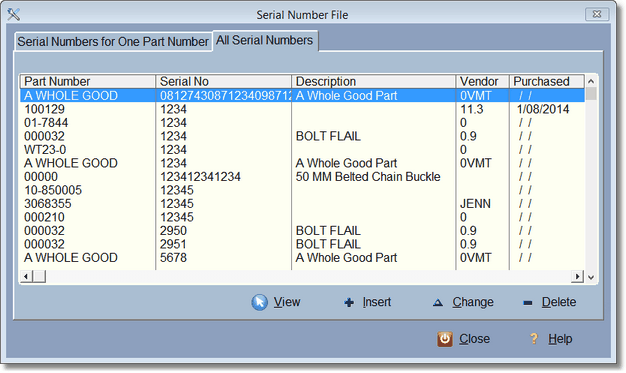
Serial Number screen for All Serial Numbers or by One Part in Inventory
All Serial number browses have the same Serial Number Record Form.