|
<< Click to Display Table of Contents >> ElistRo |
  
|
|
<< Click to Display Table of Contents >> ElistRo |
|
This is a list of Emails associated with a List Name.
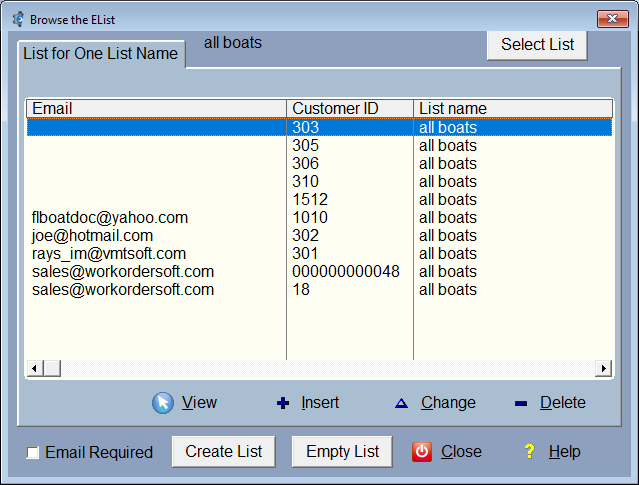
The first step is to select a list by clicking the Select List button.
Once you have a list selected, you can empty or create the list.
You could add email addresses or customer to the list manually by just clicking the Insert button. But that is a lot of work if you are going to add more than five!
Create List brings up a query screen:
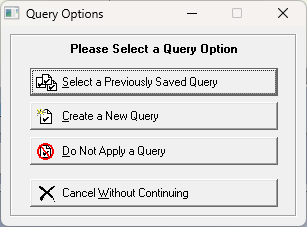
You can save the queries so you can use them in the future.
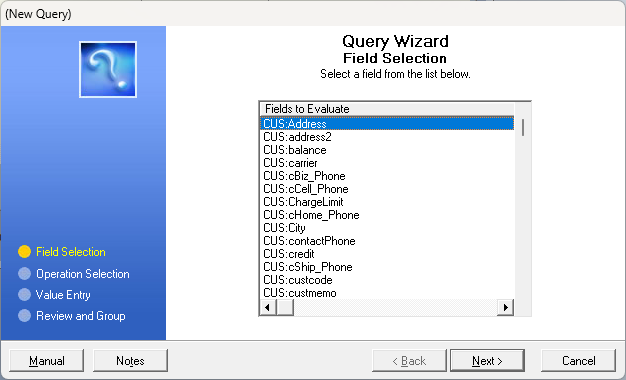
This is more complicated than we can explain here. But let's do a quick example. In the customer entry form on the Other Tab, there are 2 user fields. The field names are cus:userD_1 and Cus:userD_2. You can use both or one at a time.These are made for queries.
•First create a new query.
•Select CUS:userD_1 then next.
•Select is Equal To, then next.
•Type in the exact information. Make sure you type it in the query exactly like you have it in the customer record. Case matters.
•Then the query will display as you have created it.
•Click Finish and name the query.
This will query your customer records and return the results. If you've clicked the Email only button, it will only return customers that have an email entered into their record.
If you wanted all of your customers, you could query with cus:email is not blank, for instance.
Once created, you can select this list anytime in the future, or now if you like.