* * HELP & MANUAL PREMIUM PACK 3 DEMO VERSION * *
This documentation was styled with a demo skin from the Premium Pack 3 add-on for Help & Manual. The contents of the skin are encrypted and not configurable.
This version is copyright and may only be used for local testing purposes. It may not be distributed.
Please purchase the full version of the Premium Pack to get the configurable skins and remove this notice.
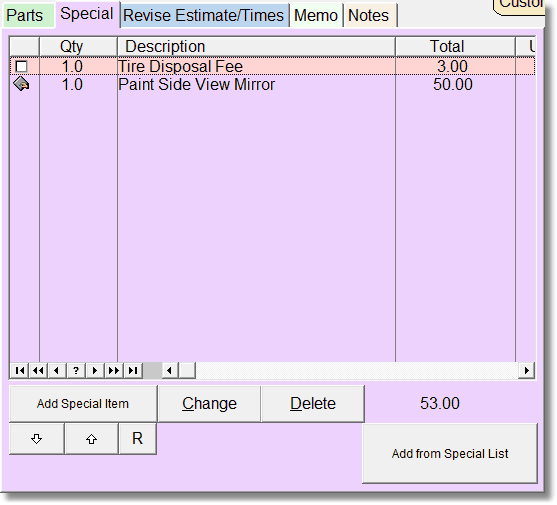
When you select the Special Tab, you'll see and can add any special charges. Like labor, special charges can be added to a pick list so you can select those items later. Click on the Add from Special List to see the list.
Otherwise, just click on the Add Special Item to add an item directly to the work order. Special items are great for anything that is not a part or a labor item.
If you are using the Simplified Work Order Screen, the Special Browse will look like this:
Tricks and Tips
If you want to delete all items in the above labor list, Right click on the Delete Button. A question will display asking if you would like to delete all of the special items.
You can right click on the R (renumber button) to automatically renumber by Description, Category, Canceled, or none.