* * HELP & MANUAL PREMIUM PACK 3 DEMO VERSION * *
This documentation was styled with a demo skin from the Premium Pack 3 add-on for Help & Manual. The contents of the skin are encrypted and not configurable.
This version is copyright and may only be used for local testing purposes. It may not be distributed.
Please purchase the full version of the Premium Pack to get the configurable skins and remove this notice.
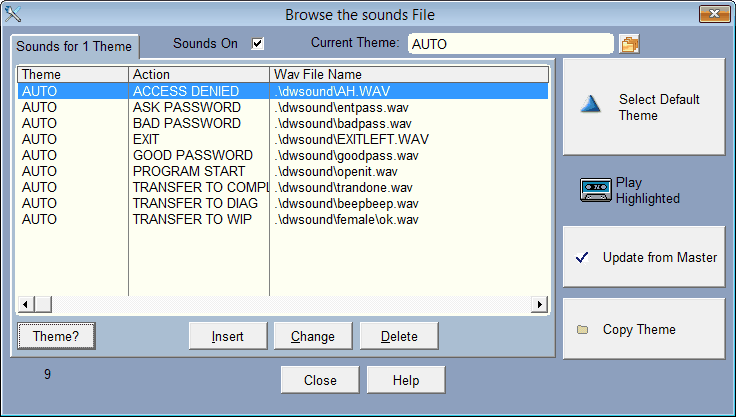
To get sounds to work in the program go to Setup and click on Sound themes.
Sometimes we change a theme, adding more actions to the themes. Actions are things like when you transfer an estimate to a work in progress, or you complete a work order. To check for new themes, just click on the Update from Master.
We do not update your sounds file, just the master file. That way if you created your own theme, it won't get overridden.
Pick Select Default Theme.
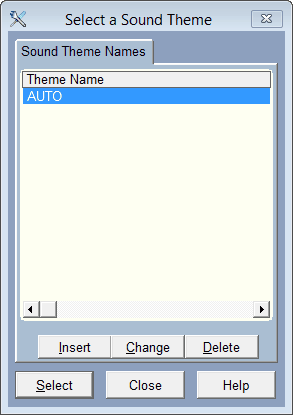
Click on the Theme? button also shows you the different themes available. You can test the sounds by clicking on play with one of the sounds highlighted.
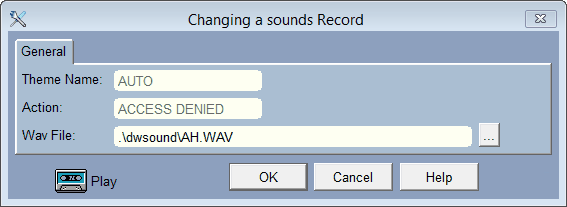
If you download some wav files you can use them instead of the ones we have. just copy them to the dwsound folder under the wrench folder. Pick change and tell the program the name of the file by clicking on the box with 3 dots and looking it up.
To turn sounds off select Setup, Sound Themes, go to the Update Menu and pick Select Default Theme. Where it says Sounds Enabled make sure the check mark is not on.
Note: there will always be a sound because the 'Actions' always call for the sound. However when sounds are off, there will be a small sound to indicate you have done something.