* * HELP & MANUAL PREMIUM PACK 3 DEMO VERSION * *
This documentation was styled with a demo skin from the Premium Pack 3 add-on for Help & Manual. The contents of the skin are encrypted and not configurable.
This version is copyright and may only be used for local testing purposes. It may not be distributed.
Please purchase the full version of the Premium Pack to get the configurable skins and remove this notice.
Change Colors
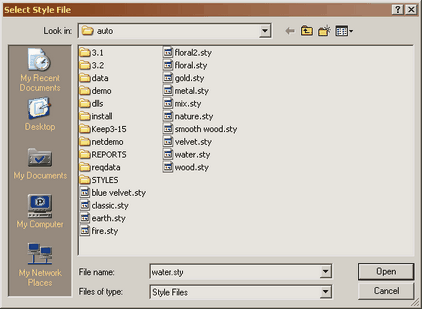
Your program can be customized to your own personal taste using the Select Color Theme option found under the File Menu.
The program comes with about 14 different color themes to choose from. Changing the theme will change the whole look of the program. Experiment with the themes until you find one that you like.
Note: There is one screen that you cannot choose the color because the colors are imperative to make the screen easy to read. Color changing would actually change the functionality of these screens. This includes the main Work Order/RO entry screen.
After choosing the Select Color Theme option click on the theme you want to try and then click on OK.