* * HELP & MANUAL PREMIUM PACK 3 DEMO VERSION * *
This documentation was styled with a demo skin from the Premium Pack 3 add-on for Help & Manual. The contents of the skin are encrypted and not configurable.
This version is copyright and may only be used for local testing purposes. It may not be distributed.
Please purchase the full version of the Premium Pack to get the configurable skins and remove this notice.
At this time this screen is for setting up the real time labor guide. You will need to call Real Time and get their CD.
(800) 487-0279 is the phone number. You can get a 45 day free trial. After that it's $295 for one machine and $50 for every extra machine on the local network.
This info is good as of December 20, 2013.
Real Time Labor Guide
Another good resource for labor guide is the Real Time Labor Guide. A total Windows based software it will do a great job of generating labor estimates for you. To set it up use the Path Lookup, it should look like this; C:\RT\Export.txt. Run Digital Wrench and the Labor Guide at the same time. Do the estimate in the Labor Guide and use the Get Quote RR button to bring in the information in to your Work Order.
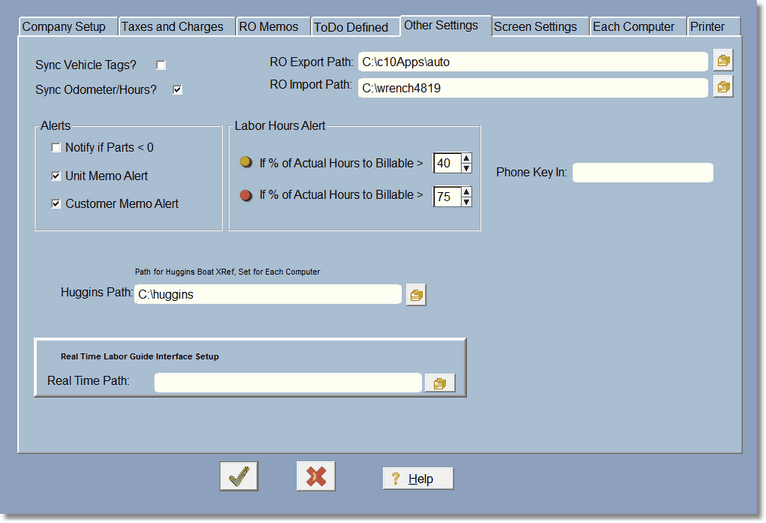
Sync Vehicle Tags causes the program to sync the vehicle tag in the RO to the vehicle tag in the customers vehicle. Remember, the vehicle in the RO was 'copied' from the customers vehicle, so the 2 can have different information.
Synch Odometer/Hours works the same as vehicle tags, except that if you put in a higher odometer/hours reading than the actual vehicle has, the vehicle odometer will be updated (if this is check-marked).
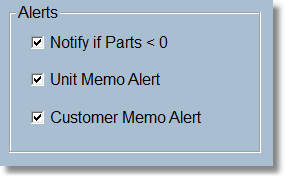
These are alerts that can be turned on or off. If there are less parts than required when adding a part to an RO, then the alert will show the quantity and the true quantity. The true quantity takes into account how many have been ordered and how many are on hold.
Labor Hours Alert
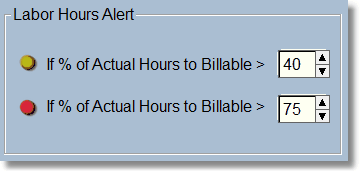
This work if you are logging labor hours. When you log labor hours, the program keeps track of your Actual hours worked on any particular labor item. Actual Hours to billable hours is the percentage of how close the actual hours are to the billable hours. If your actual hours were 10 and your billable hours were 10, then you would be at 100%. If your actual hours were 15 and your billable hours were 20, then your percentage would be 75%. In other words you have worked 75% of the time allotted. So, you can set a percentage to be yellow, and a percentage to be red. That way you are alerted when you really need to take a look at these hours figures and decide if the tech needs to speed up, or call the customer and let them know it will be more than anticipated.
The lights show on the actual RO Labor screen, and all labor items actual and billing hours are totaled together so you can see the lights on the Main RO Browse Screen.