* * HELP & MANUAL PREMIUM PACK 3 DEMO VERSION * *
This documentation was styled with a demo skin from the Premium Pack 3 add-on for Help & Manual. The contents of the skin are encrypted and not configurable.
This version is copyright and may only be used for local testing purposes. It may not be distributed.
Please purchase the full version of the Premium Pack to get the configurable skins and remove this notice.
With this option, you are able to add and change the part right on the screen. We do not recommend using it because it is easy to neglect selecting a category. We no longer put the edit in place optional light on the RO screen. If you want to be able to toggle the light on or off, you'll need to go to the company setup to allow edit in place.

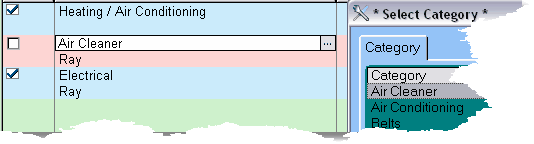
Notice the 3 dots (ellipse)... you can click on that button and the category selection table will display.
Once you are done editing parts during Edit-in-Place, Save the item by pressing enter on the keyboard, or using the mouse click on the small check box below the list.