* * HELP & MANUAL PREMIUM PACK 3 DEMO VERSION * *
This documentation was styled with a demo skin from the Premium Pack 3 add-on for Help & Manual. The contents of the skin are encrypted and not configurable.
This version is copyright and may only be used for local testing purposes. It may not be distributed.
Please purchase the full version of the Premium Pack to get the configurable skins and remove this notice.
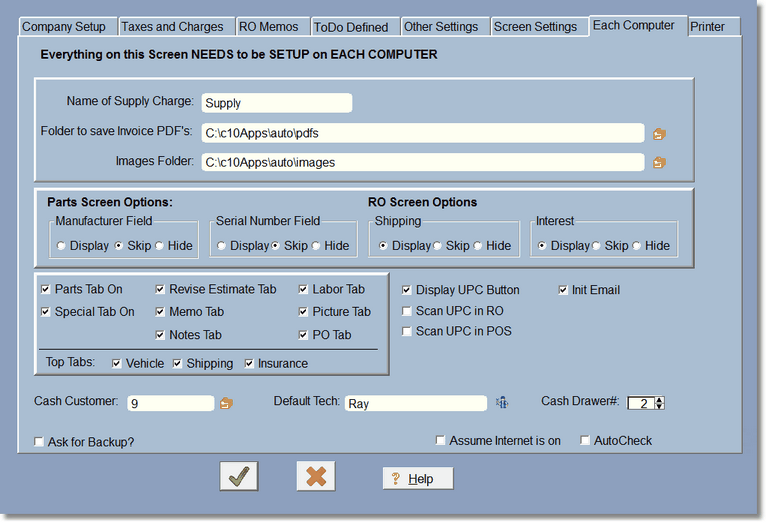
These options must be set up on each computer (hence the name of the screen). If you are on a Local Area Network (LAN), and you want all of your PDF's to save in the same folder, you'll need to change the folder to your network drive.
Name of Supply Charge
For some invoices, the name of the supply charge will replace the words 'Supply Charge'. We had one company use it for Credit card fee's.
Folder to save PDF's
Normally the PDF's that are created from invoices save to the current folder, usually wrench. However, if you would like to save them into a different folder, click the icon and pick the folder. There is a folder under wrench called pdfs that is made available for you.
Images Folder
The images folder is where you will store your images that you might get from your camera or phone, so you can add those images to your repair order or vehicle. If you are on a network you might want to choose the images folder under the wrench folder on the 'server' computer, which should be a mapped drive. When you select pictures for your vehicles, the program will ask to copy the picture to the images folder you enter here. If you don't want the program to copy anything, just leave this blank... the the pictures will be wherever you selected them in the first place. On a network that really won't work because you might have pictures scattered among your network computers... hence the reason to create a folder on one computer and have the program copy the pictures to that one folder.
Part Screen Options
The Manufacturer field and Serial Number fields are not necessary for your parts, so if you don't need them, turn them off here.
RO Screen Options
Shipping and interest are only needed if you do shipping or charge interest on invoices that are not paid. These are on the right side of the RO screen.
Top Tabs
These are the tabs at the top of the RO Screen. Simply uncheck the ones you don't want.
Cash Customer
This is mostly for the Point of Sale. There is a cash customer button as you may not want to enter each customer into the computer when you are just selling parts (although it's a very good idea from a marketing standpoint). To set this up, create a customer called cash, then select that customer number here.
Default Tech
When creating an RO, it is easier if you select the technician first, then when you add labor or parts, it will automatically bring in that tech (which you can override of course). This makes it even easier, it brings in the default technician on each invoice so you don't have to remember.
Cash Drawer#
If you have multiple computers and multiple stations where you take money, enter the cash drawer# here. 0 is a number, so you can have a 0 and a 1. It simply adds the cash drawer# to each transaction record in the cash file, so you can print cash reports by the number.
Ask for Backup
This should be left on on the main (server) computer only and turned off on any workstations. Workstations should be NOT running Digital Wrench when doing a backup. You should do a backup every single night.. it only takes a minute and can literally save you hundreds of hours of work if you lose your data. Always backup to an external source. These days you can get free backup areas on Microsoft or Google.
Auto Check and Assume Internet is On
Auto Check works if you have a constant internet connection. When you start Digital Wrench, the program will automatically check to see if any upgrades exist. If they do you will get a message, then you can check for updates and view what they are. Assume Internet is on should also be checked if Auto Check is checked. Auto Check will also check for a code if you are on a subscription plan and update the expiration date automatically.
If Digital Wrench is locking up on you when it starts up, it could be because of Auto Check. Perhaps your firewall is preventing Digital Wrench from accessing the internet, or more likely, an anti-virus program. Simply uncheck both of these and see if your problem goes away. (We do not SEND anything... we only check to see if there are updates or a new code for subscriptions, or a notice of importance).