* * HELP & MANUAL PREMIUM PACK 3 DEMO VERSION * *
This documentation was styled with a demo skin from the Premium Pack 3 add-on for Help & Manual. The contents of the skin are encrypted and not configurable.
This version is copyright and may only be used for local testing purposes. It may not be distributed.
Please purchase the full version of the Premium Pack to get the configurable skins and remove this notice.
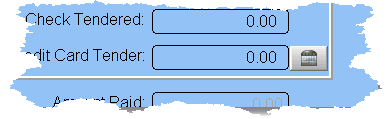
Currently we only process credit cards using ChargeItPro. You may use your own processor, but not through the software. If you use your own processor, just type in the amount at the Credit Card Tendered field (when completing the work order or adding a deposit). Otherwise, press the small bank icon to the right of Credit Card Tender field.
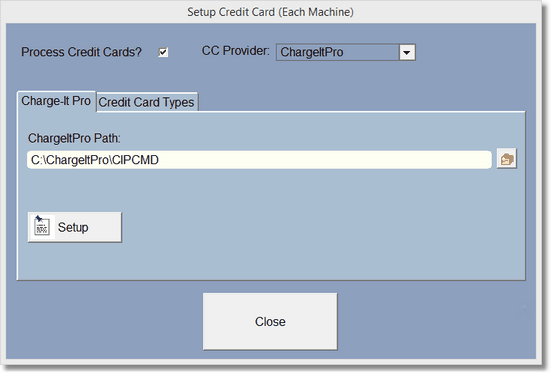
Setup is fairly simple, type in or lookup the ChargeItPro path. This is where ChargeItPro is installed, and is usually on your C: Drive.
The fine folks at ChargeItPro will help you with the User and Password fields. They are great at getting ChargeItPro running. The Setup Button will run the ChargeItPro setup. You must select and save the Path first.
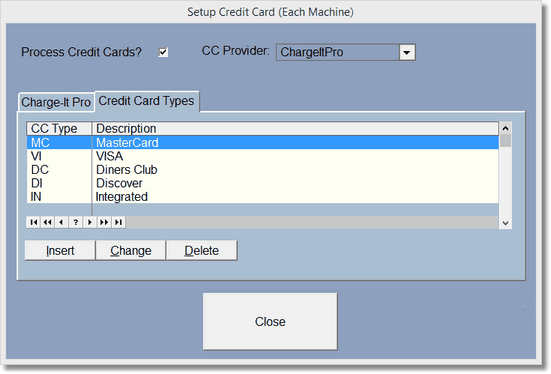
So you have unlimited Credit Card Types, you will need to add them yourself to the Credit Card Type File: