|
<< Click to Display Table of Contents >> User Lookup Table |
  
|
|
<< Click to Display Table of Contents >> User Lookup Table |
|

•1 & 2: User Field 1 and User Field 2 - Customer Record under the Other Tab
•3: Tax Table Selection - Customer Record under the Other Tab
•4: References - Customer Record on the Main Tab
•5: Quick Status - Customer Record on the Main Tab
•6: Shipping - On the top of the RO screen under the Yellow Shipping Tab
•7: Parts Status Lights - Defines the Parts status lights in the Part of the RO.
•8: Rental Status - Status items for rentals selectable from the rental record in the Point of Sale.
To make it easier and faster to have the right information in these drop-down selections, we now have them in a file, so we don't have to assume what you want. We may even add other places in the future that use this feature. Click on the Custom User Lists button in Company Setup under Other to access.
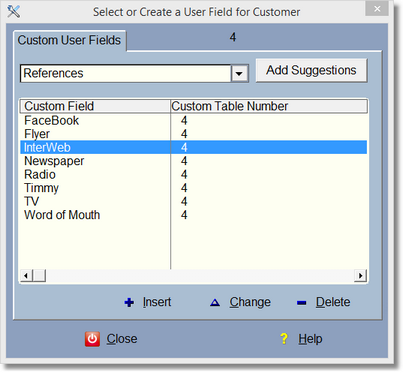
Notice on some selections, there is an 'Add Suggestions' Button.
You can always delete the suggested items if you don't like them.
Simply select the area (by using the drop-down arrow) you want to add your choices to, then click on the Insert button to add that choice.
Note the Add Suggestions button. This will automatically add suggestions that we've put together. You can alter them or delete them if you don't like them of course.
One of the lists is a little different from the others and that is the list for Parts Status Lights. Because there are only the check and 4 lights, there are 5 fields allowed that will work, and they have to have a number in front. These numbers represent the lights or icons from left to right. In this way the tooltip will display what the lights mean when you hover over them either on the RO parts browse, or the RO part form.
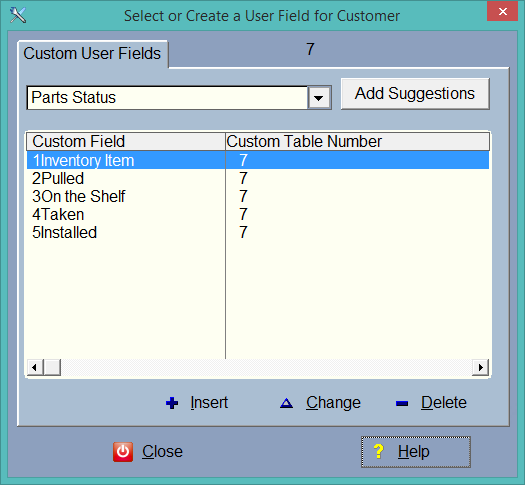
Notice the when hovering over the light the ToolTip displays what the light means. Also notice that the 5 is not included in the Installed because the program takes off the number. We have the numbers in the screen above so they will be in the correct order. You only have to put the numbers into the Parts Status because they are lights (icons), not an entry field.
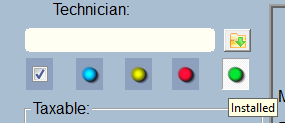
Once you start using the lights, it is a bad idea to change the meaning of the lights later on. You could change the meaning if you find you're not using one of the lights, but think about it first.