|
<< Click to Display Table of Contents >> Merge Customers |
  
|
|
<< Click to Display Table of Contents >> Merge Customers |
|
There are times you'll want to merge 2 customers together. Usually this is because someone didn't look the customer up first, so new RO's go to a different customer even though it is the same.
Hence, merge customers. This was designed to correct mistakes only. The best way is to not make these mistakes in the first place, so you should make a habit of looking people up first.
There are a couple of caveats to this. First, the vehicles/units will be added to the customer, not replaced. So in the end you will have the same vehicle in the same customer two or more times. There is no real way to avoid this as the vehicles are linked to the RO and the customer. Perhaps one day we'll try and figure out how to address that issue.
When you merge a customer, it is merely transferring all RO's and vehicles/units from one customer to another. The customer information stays the same. So if you have one customer that is taxable, and the other it not, it will not change the RO's calculations. If the RO's are not completed, then editing the RO will change the calculation, but you'll do that after the merge. If they are completed, the RO's don't get changed anyway.
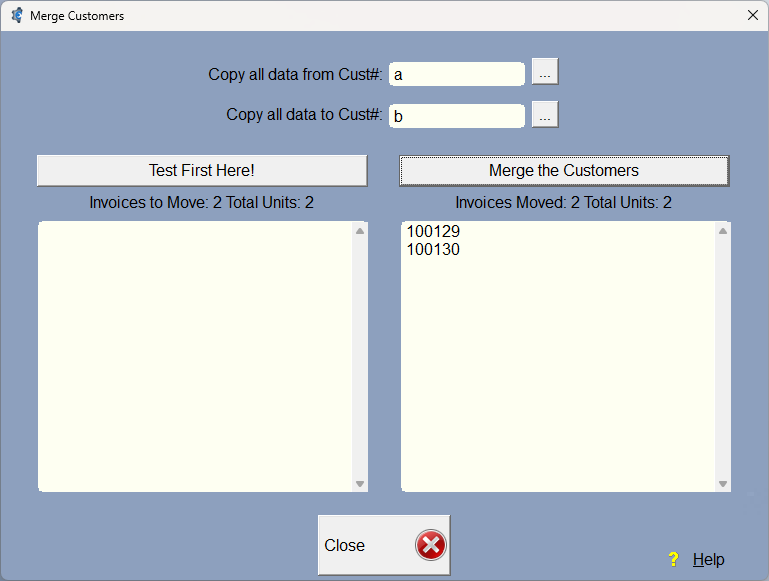
First, select the customer you're getting the RO's from, then the customer you will be transferring the RO's to.
You must click on Test First Here to proceed. It will show how many RO's, vehicles/units to move, and a list of RO's that will get moved. You might want to go to the $ screen to make sure that is what you want to do.
Next, the Merge the Customers button will be available. Click on it, and it will show how many RO's got moved, and how many vehicles, along with a list of the RO's that did get moved. If there is an error, the procedure will stop and show the error. Then you can use this to figure out which RO didn't get moved so you can go look at it.