|
<< Click to Display Table of Contents >> Browse Work Orders |
  
|
|
<< Click to Display Table of Contents >> Browse Work Orders |
|
With Digital Wrench, you can start with an Estimate, then transfer to a Work in Progress (WIP), then finally complete the repair order which creates an invoice from the RO.
YOU do NOT need to start with an Estimate. You can start with a Work in Progress (WIP). If that's the way you normally do it, click Work in Progress in the default starting Tab. Whichever tab you add an RO in, that is what you'll get, either WIP or an Estimate. (Note: the Default Starting Tab selection will cause that tab to be displayed every time you enter this screen.)
Please note that Work Order (WO) and Repair Order (RO) are used interchangeably throughout the program and the help.
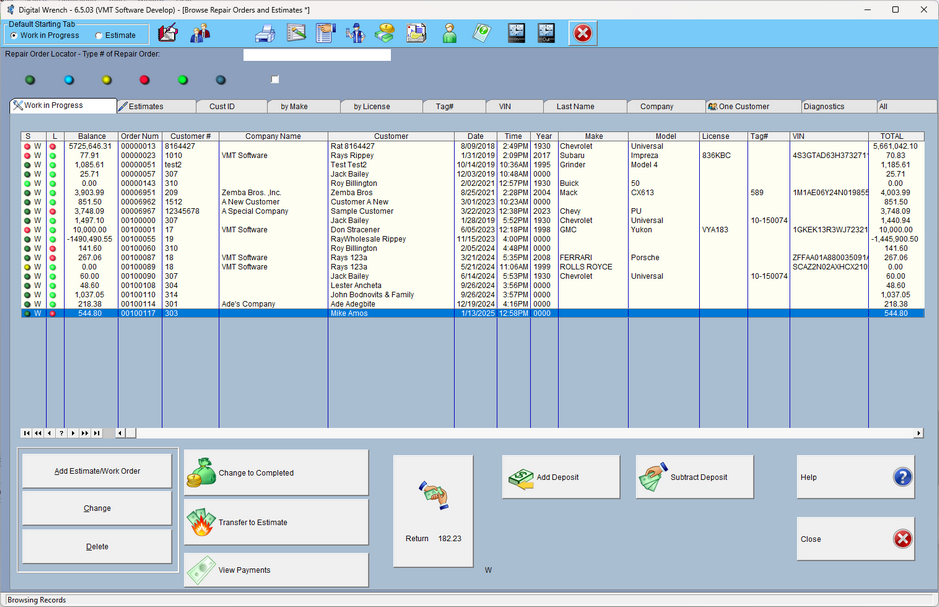
The Estimates Browse is the beginning of the Work Order process. From here you can add new estimates then change them to a Work in progress. Should the customer decide not to do the work you can change the estimate to a diagnostic and charge the fee for making the estimate. (You can also just start with a Work in Progress (WIP).
You can add new estimates by clicking on the Insert/Add Estimate Button. After the estimate has been approved you can transfer it to a work in progress by clicking on the transfer to Work Order button (F2).
Searches for existing estimates and work orders can be can by customer number or name, make of car, license number, tag number or VIN number by clicking on that tab.
Typing information to find something on each tab is easy. For example; in the make tab start typing the make you are looking for, like Ford. The program will display all the Ford's.
In the Find by Customer # tab click on the small button to the right of CUSNUM and you can look up a customer by name. Start typing the name you are looking for. Don't worry about not having a place to type!
Deposits for a estimate or work order can be made by clicking on the Add Deposit button.

Adding parts to an estimate does not affect any inventory parts added to it. When transferred to a Work in Progress the inventory parts are reduced from inventory and put on hold.
When you pick the browse or add estimates icon a list of active estimates a displays in the browse table. If this is the first time you have used the program, add your first one. To add a new estimate to the program from the browse table click on Add Estimate/Work Order.
When the Estimate is approved transfer it to a Work Order.

If it's not approved transfer it to Diagnostic, which means you charge a fee for the estimate. In order for this to work you must have entered an amount in the Diag fee of the estimate.
