|
<< Click to Display Table of Contents >> Email Setup |
  
|
|
<< Click to Display Table of Contents >> Email Setup |
|
Our Email system uses SMTP (Simple Mail Transfer Protocol). This allows you to connect to any email system you have that supports SMTP, and most do. Some providers add extra security that we can't use at this time, so you'll have to change that (see below).

You can usually find out your SMTP setting from your Email provider. If you're using Email from a web email service like Google (Gmail) or Yahoo, you can look it up on the internet.
The settings you'll get from your Email provider are at the top. You'll need to know what port, and if they use SSL and/or Email Authentication. There is a dropdown on the right of the Set Mail Server button to help you with a few common email providers.
The Default settings are where the Email comes from, and where it goes when you're sending bulk (many emails at once).
The best thing to do is try it out.
Email Cash Report Settings:
BCC will add a blind copy email everytime you send the cash reports via Email
BCC Invoices will email a blind copy of every invoice you send via email.
Invoice Default Letter is a letter created in ELetter, the letter Editor. It does a merge with the tokens so the letter is personalized. You can even make the letter look like an invoice.
When you think you've got it setup, click on 1) Set Mail Server first, 2) Get Mail Server, then click on 3) Send Test Email. If it's going to error out, it may take a few minutes to get the error back, so be patient, do not shut down the program. You will get a Successfully sent message pretty quick if it works, and you'll get an email in your inbox.
Below are some sample Email setups.
Please note that these are subject to change by the email service provider.
Here's the info from about.com concerning gmail smtp settings:
•Gmail SMTP server address: smtp.gmail.com
•Gmail SMTP user name: Your full Gmail address (e.g. example@gmail.com)
•Gmail SMTP password: Your Gmail password
•Gmail SMTP port: 465
•Gmail SMTP TLS/SSL required: yes
With Gmail, they are using a more secure setting in some cases, and at this point our email won't work with that setting on. To turn it off, sign in to your Gmail account and go to the Account settings. On that page you should see a Sign in and Security link.
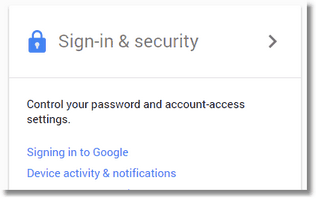
From here, click the link for Sign-in & Security and scroll all the way down until you see Allow Less Secure Apps
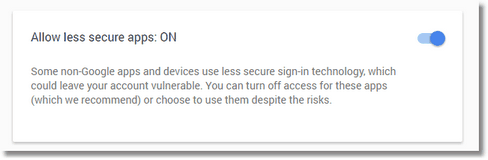
Turn it on. This should allow our Email to work with Gmail.
However... they have changed things with Gmail so the new way to go is outlined in the below slide show:
Set Gmail for Digital Wrench
Here's the info from about.com concerning yahoo smtp settings:
•Yahoo! Mail SMTP server address: smtp.mail.yahoo.com
•Yahoo! Mail SMTP user name: Your full Yahoo! Mail email address (including "@yahoo.com")
•Yahoo! Mail SMTP password: Your Yahoo! Mail password (See below to get an app password from Yahoo!)
•Yahoo! Mail SMTP port: 465
•Yahoo! Mail SMTP TLS/SSL required: yes
So... for Yahoo.... Here is how you can make our software use your yahoo account.
1.Sign in and go to your Account security page.
2.At the bottom of the page, Click Generate app password or Manage app passwords.
3.Select your app from the drop down menu and click Generate. (Here of course you won't find Digital Wrench, so click on Other, then type in Digital Wrench.)
4.Follow the instructions below the password.
5.Click Done.
6.Use this app password and your email address to sign in to your email app. (So go back to the email settings in Digital Wrench and put in the new app password that yahoo generated for you.
Here's the info from about.com concerning hotmail smtp settings:
•Windows Live Hotmail SMTP server address: smtp.live.com
•Windows Live Hotmail SMTP user name: Your complete Windows Live Hotmail email address ("me@hotmail.com" or "me@live.com" for instance)
•Windows Live Hotmail SMTP password: Your Windows Live Hotmail password
•Windows Live Hotmail SMTP port: 587
•Windows Live Hotmail SMTP TLS/SSL required: yes