|
<< Click to Display Table of Contents >> Credit Card Setup |
  
|
|
<< Click to Display Table of Contents >> Credit Card Setup |
|
Currently we only process credit cards using ChargeItPro and Clearent. You may use your own processor, but not through the software. If you use your own processor, just type in the amount at the Credit Card Tendered field (when completing the work order or adding a deposit). Otherwise, press the small bank icon to the right of Credit Card Tender field.

Go to Setup, Credit Card Setup...

Check the Process Credit cards. Then using the dropdown...
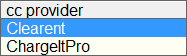
The appropriate Tab will be displayed.
Clearent Setup
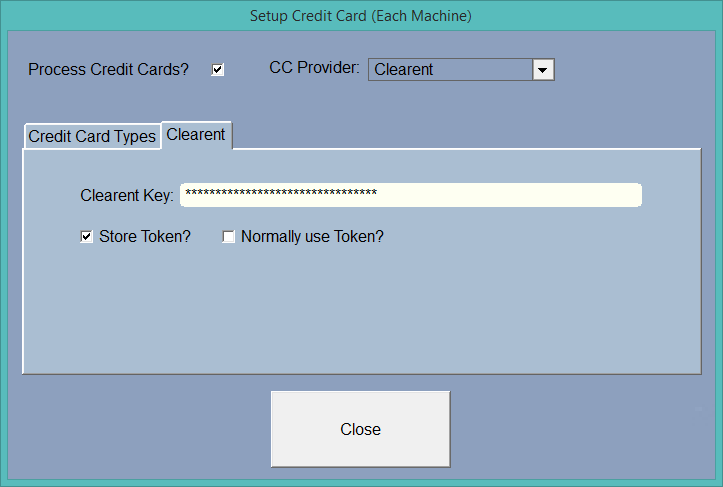
The clearent key will be given to you by Clearent when you sign up. You can choose to Store a Token so you can charge a customer again on the same credit card without using the terminal. If you choose to Normally use the token then it will be selected when you process a transaction. However, you may turn that off at the transaction screen in order to add another card.
ChargeItPro Setup
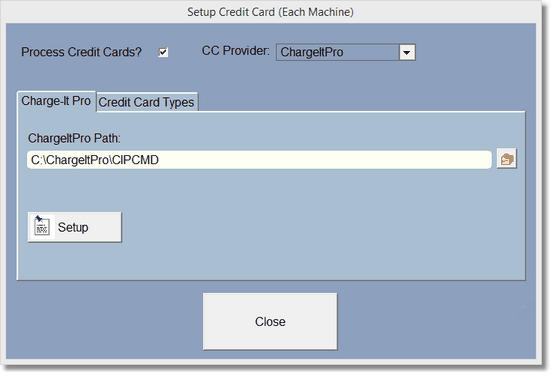
Setup is fairly simple, type in or lookup the ChargeItPro path. This is where ChargeItPro is installed, and is usually on your C: Drive.
The fine folks at ChargeItPro will help you with the User and Password fields. They are great at getting ChargeItPro running. The Setup Button will run the ChargeItPro setup. You must select and save the Path first.
So you have unlimited Credit Card Types, you will need to add them yourself to the Credit Card Type File:

If you have credit card transactions that are not displayed in the Cash/Check/Credit card report, you can click on the "Get CC Types" button and have the program look for the credit card types in the cash or the cash history file. Only the first six characters of the CC type are retrieved from the CC Machine.