* * HELP & MANUAL PREMIUM PACK 3 DEMO VERSION * *
This documentation was styled with a demo skin from the Premium Pack 3 add-on for Help & Manual. The contents of the skin are encrypted and not configurable.
This version is copyright and may only be used for local testing purposes. It may not be distributed.
Please purchase the full version of the Premium Pack to get the configurable skins and remove this notice.
To make payments for a customer, First click on the .
.
This brings up the screen that after you select a customer, can show you all invoices. It starts filtered by invoices with balances. Remove the check-mark next to balances only to show all invoices, paid or not.
You can complete an invoice from here by highlighting the invoice and selecting the Complete Transaction Button 
However, you may also click on the Multi-Pay button  which will allow you to pay on multiple invoices with one payment.
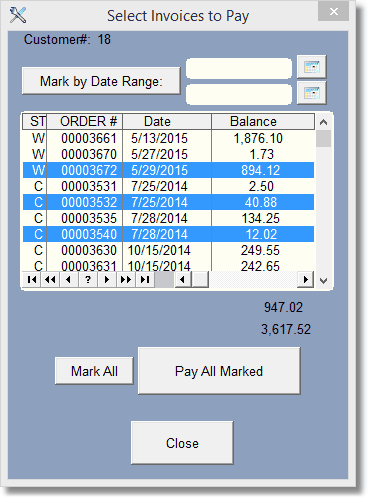
There are several ways to select the invoices to pay. First, you can highlight multiple invoices with the cursor bar by holding the control key down when you click. You can also click on one invoice, then Shift click on another one and all of the invoices will get highlighted.
You can also just mark them by date range. Click the Mark by Date Range button or click on the 2 calendars to select a date range.