* * HELP & MANUAL PREMIUM PACK 3 DEMO VERSION * *
This documentation was styled with a demo skin from the Premium Pack 3 add-on for Help & Manual. The contents of the skin are encrypted and not configurable.
This version is copyright and may only be used for local testing purposes. It may not be distributed.
Please purchase the full version of the Premium Pack to get the configurable skins and remove this notice.
When you are adding parts to your work order, you can use the Parts List (Inventory) lookup. This allows you to add parts from your inventory. Even if you don't track your inventory, it can be handy to use so you don't have to add the same part to your work order over and over.
From the Work Order Parts select the 'Add Parts from the Parts List' Button, the following screen will display.
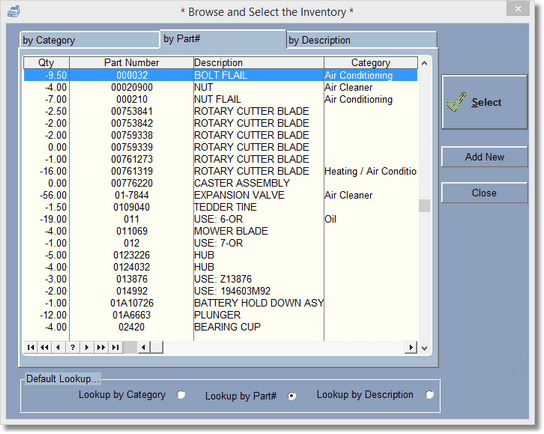
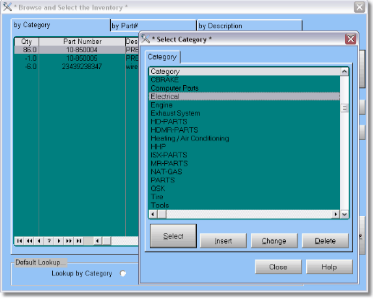
You may select parts by Category, Part#, or Description. When selecting by category, another category screen will display. Type in the first few letters of the category, then press enter or select or double click to select the category. Then all of the items in that category will be displayed. Then you can type the first few letters of the description to 'zoom' in on the part you are looking for. Click select to bring the part into the work order part.

At the bottom of this lookup screen you'll notice the default lookup. This will save you some time. If you normally look parts up by part#, select the Lookup by part# default. Then the next time you lookup a part, the screen will display in part# order. Select the tabs at the top to change the lookup without changing the default.