|
<< Click to Display Table of Contents >> User Defined Unit Fields |
  
|
|
<< Click to Display Table of Contents >> User Defined Unit Fields |
|
By clicking on the Select Biz Type Button in the first Company Setup screen, the following screen will be displayed...
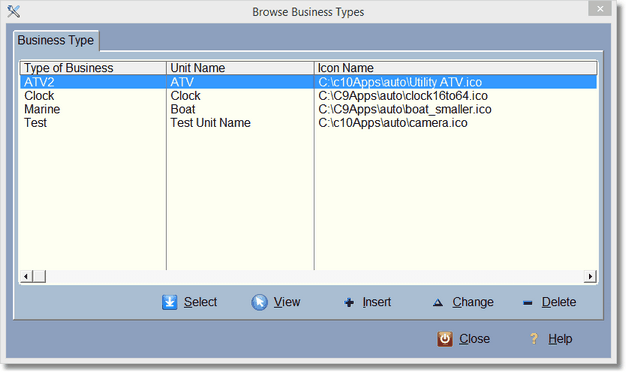
You probably won't have any Business types available to start, so Click on Insert to add a new Business Type.
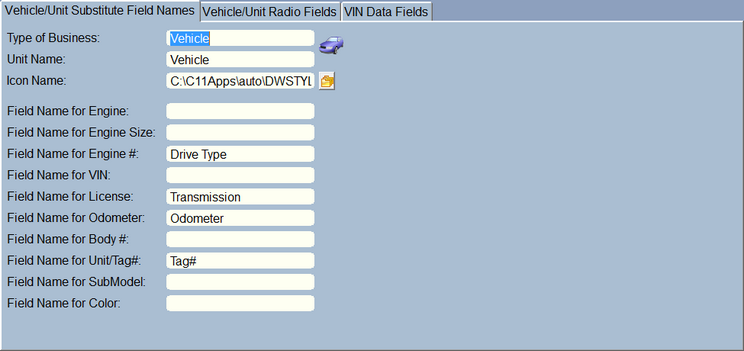
The type of business can be anything, it's just for your reference. Unit Name is important because it will display in many places. For instance on the RO screen there will be a 'Select' button, so if your business is fixing ATV's for instance, you would put in ATV so the button says 'Select ATV'. You can always change it later if you make a mistake.
The icon shows up in a few places, so it's nice to have an icon that matches what you work on. This makes it easy to glance at a vehicle or work order and see the type of vehicle you're working on. We have included several icons for this use. They are located in the \wrench\dwstyle\VehicleIcons folder. You can also select an icon that you choose or create.
The rest of the fields are important to try and get right the first time because if you call a field a License, then later on change it to Size, then all the corresponding data will be incorrect.
These fields show up on some invoices (and can be made to show up on custom invoices), as well as the RO screen, and several browse screens, and of course the unit/vehicle screen.
The nice thing about this, is you can repair clocks, computers, helicopters, etc., and the program will reflect your kind of repair business. And if you do repair clocks, computers, and helicopters, well you're one talented business!
In the vehicle/unit form, you can now select the type of unit. So if you work on lawnmowers and pressure washers, you'll be able to select the correct one. This is convenient because you will be able to bring up a work order and see the type of unit/vehicle it is at a glance.
At the bottom of the vehicle/unit screen are Radio option fields. These let you choose certain options for that field. For instance, Transmission could be Automatic or Manual. Example:
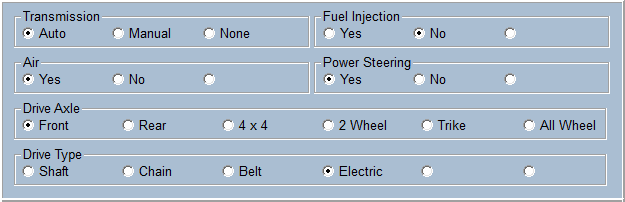
Above are the standard fields if you change nothing in the setup.
Notice there are some options that are blank. Those can be used if you set them up in the business types. Again, like the entry fields above, you only want to create this once. Going back and changing one of the fields is not a good idea, as the data will be incorrect.. so do this at the beginning. However, if you decide you're never going to use Power Steering, and you never have, then you can change it to something you need.
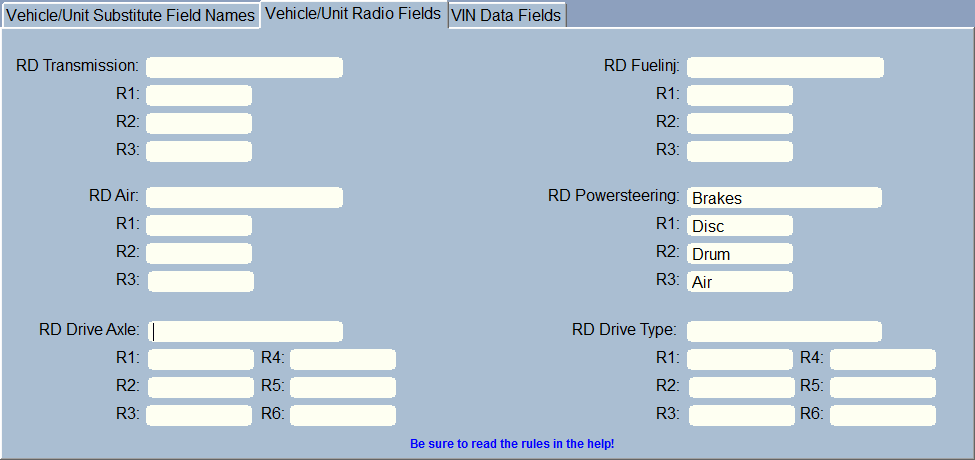
There are 4 radio options that have 3 field answers, and 2 radio options that have 6 answers. You don't have to fill in every space, but start at the beginning. R1, then R2, etc. Each radio 'question' has 20 characters. Each radio answer has 8 characters.
Remember, you can set one of these up for each type of vehicle or unit. A golf cart might have Batteries instead of Drive Axle, then up to 6 different kinds of batteries.
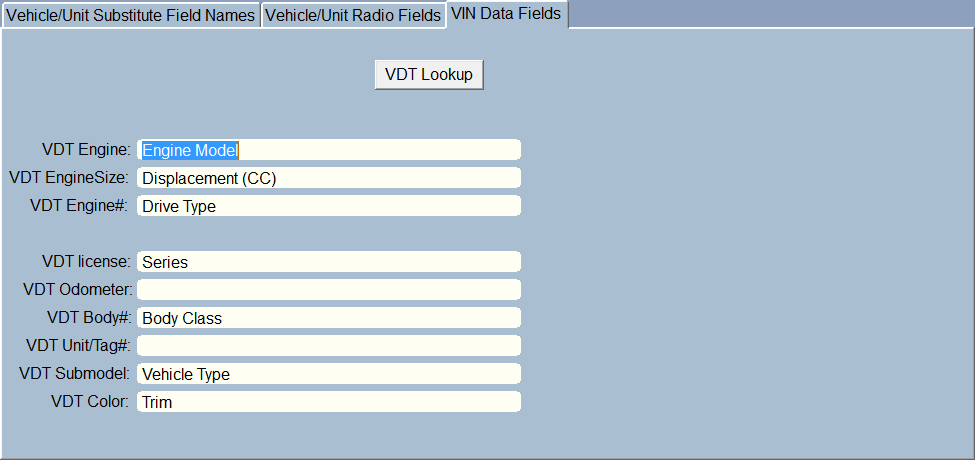
The VDT fields, short for VIN Data, give you the ability to copy the data from the VIN Lookup to selected fields in the vehicle. For instance, in the above picture, we see the field Vehicle Type from the VIN data will get copied into the the SubModel Field in the vehicle. To get a list of the VDT fields, simply click the button, VDT Lookup.
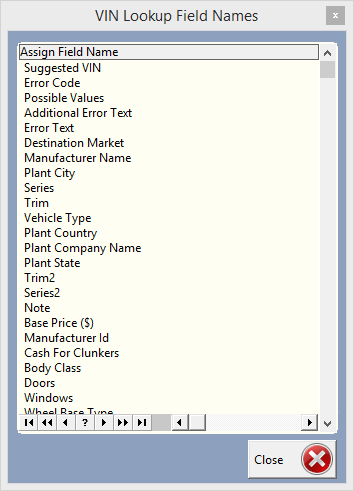
To put one of these fields onto the VDT field on the screen, just use Drag and Drop to drop that field name onto the VDT Field.
Different vehicles show different data on some of the fields. So motorcycle data from the VIN Lookup will have different data than a car. Just make a car business type, and a motorcycle type, then assign the different field names to different fields. When you're in the vehicle editing form, you will need to select the vehicle type first (car, motorcycle, truck, boat, etc.) That way the program can lookup the correct vehicle type and assign the data to the correct fields.